Getting Started
Install the editor, create your first collision shape in Blender and use it in GameMaker.
Installation#
Use Blender 2.79b. Open File → User Preferences → Add-ons, click Install from File and select the plugin ZIP archive.
Find JoltPhysics Asset Editor in the add-on list, enable it and click Save User Settings.
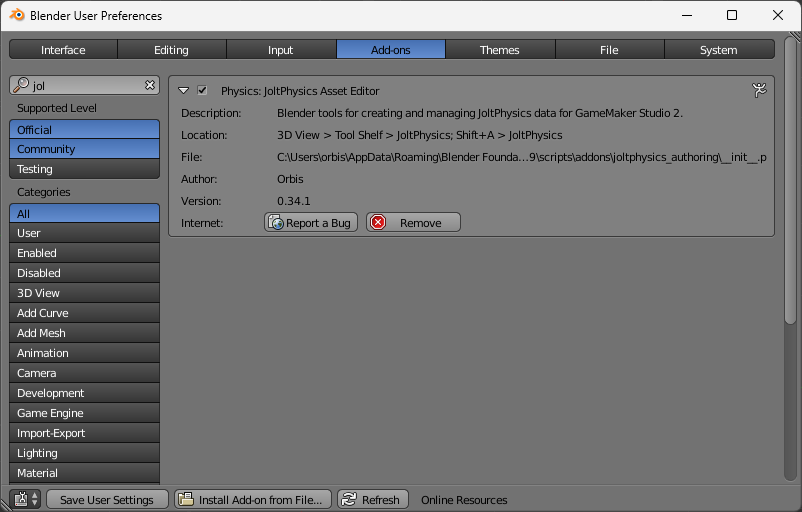
Close User Preferences. In the 3D View, open View → Tool Shelf and select the JoltPhysics tab.
Create a Configuration#
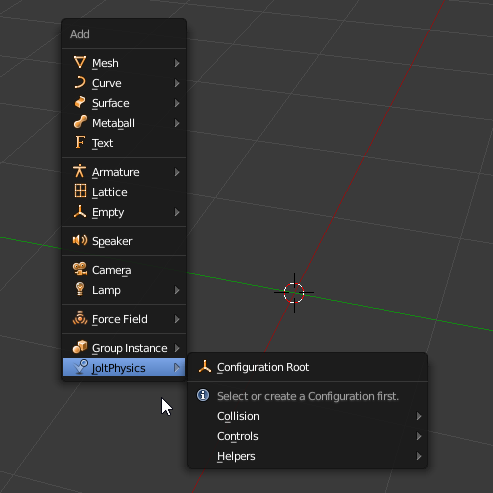
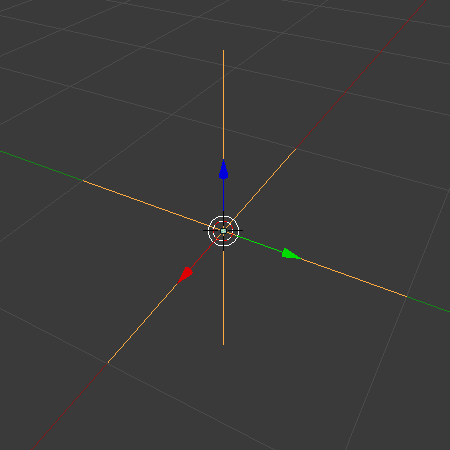
In the 3D View, choose Add → JoltPhysics → Configuration Root. The resulting JoltPhysics Root groups the collision shapes and helpers of one asset.
Keep the Root at position 0, 0, 0, with no rotation and a scale of 1. Work in metres: one Blender unit represents one metre.
Add Collision Shapes#
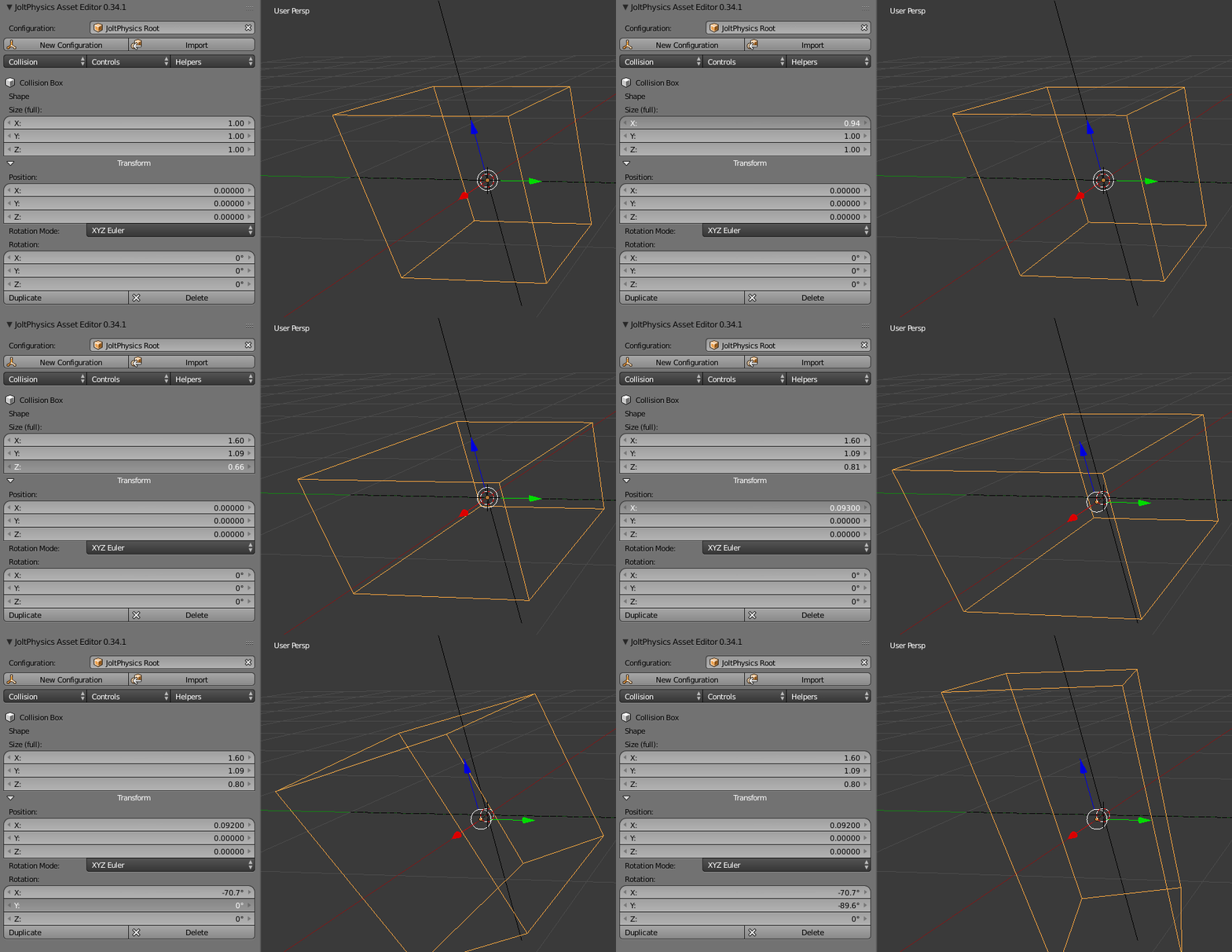
Select JoltPhysics Root and choose Add → JoltPhysics → Collision → Box. Adjust the box position, rotation and dimensions to define the desired collision.
For a more complex object, add further collision shapes to the same configuration and adjust them individually. These shapes define the physics geometry; the visible model is handled separately.
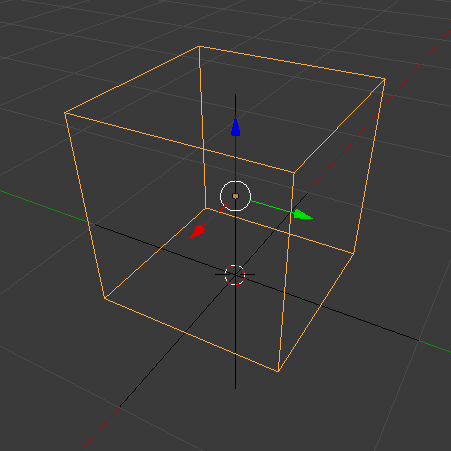
Select a collision shape to edit its properties in the JoltPhysics panel. Under Transform, Position moves it along the X, Y and Z axes, while Rotation changes its orientation. For a Collision Box, set its full dimensions with Size (full) under Shape. Adjust each shape independently to fit the object; keep the Root unchanged.
Visibility#
In Authoring Visibility, uncheck groups that get in the way while editing and check them again to show them. Hidden elements remain part of the asset and are still exported.
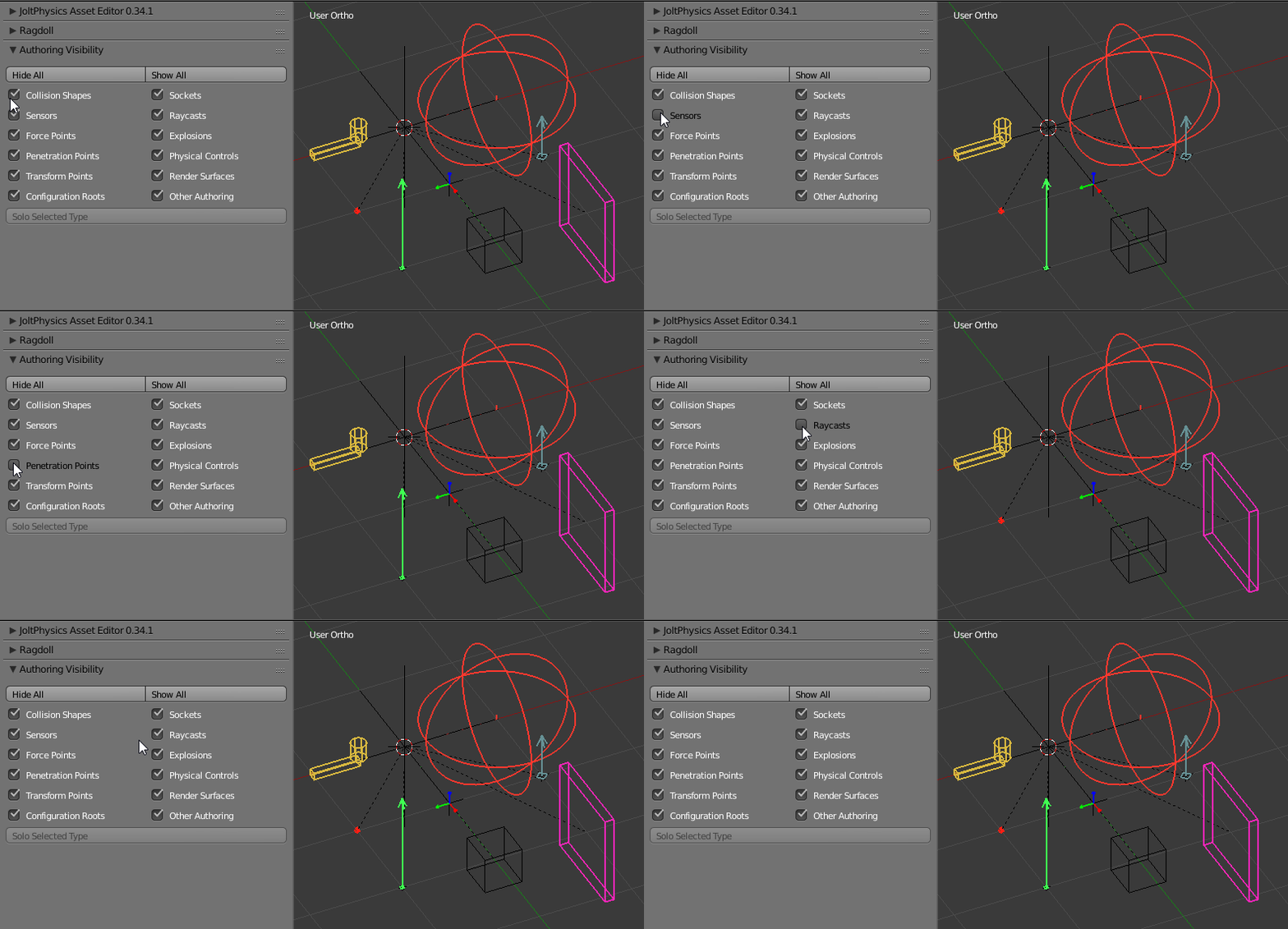
Use Hide All or Show All to control all authoring elements, or Solo Selected Type to show only the selected type. Save the .blend file to retain your editing setup.
Export the Asset#
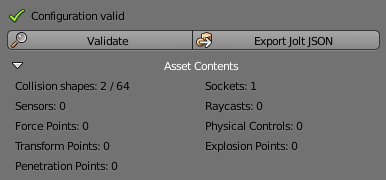
Select the configuration you want to export and run Validate in the JoltPhysics panel. Review the reported issues and resolve any errors before exporting.
Choose Export Jolt JSON and save the file as asset_house.jolt.json for the example below. This example requires at least one collision shape. Keep your .blend file as the editable source.
Use in GameMaker#
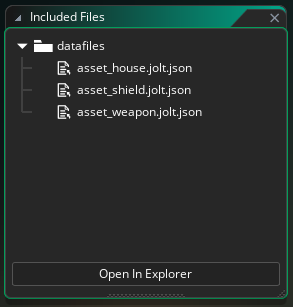
Add asset_house.jolt.json to Included Files. Use the complete filename, including .jolt.json, when loading. If it is in a subfolder, include that folder in the path.
This example assumes your project already starts the physics world with jolt_start() and updates it with jolt_update(). Follow the empty-project guide first if you do not have that setup yet.
Place this code in your house object's Create event, after the physics world has started. Loading reads the asset data; jolt_asset_create_body creates the static collision body. It does not render a house model.
body_house = undefined;
var asset = jolt_asset_load("asset_house.jolt.json");
if (is_undefined(asset)) {
    show_debug_message(jolt_get_error().message);
} else {
    body_house = jolt_asset_create_body(asset, JOLT_MOTION_STATIC,
        {position:{x:0,y:0,z:0}});
    if (is_undefined(body_house)) {
        show_debug_message(jolt_get_error().message);
    }
}
In the same object's Clean Up event, destroy the body only if it was created successfully. Run this cleanup before stopping the physics world; the shared world should be stopped by its controller when the scene ends.
if (!is_undefined(body_house)) {
    body_house.destroy();
    body_house = undefined;
}